
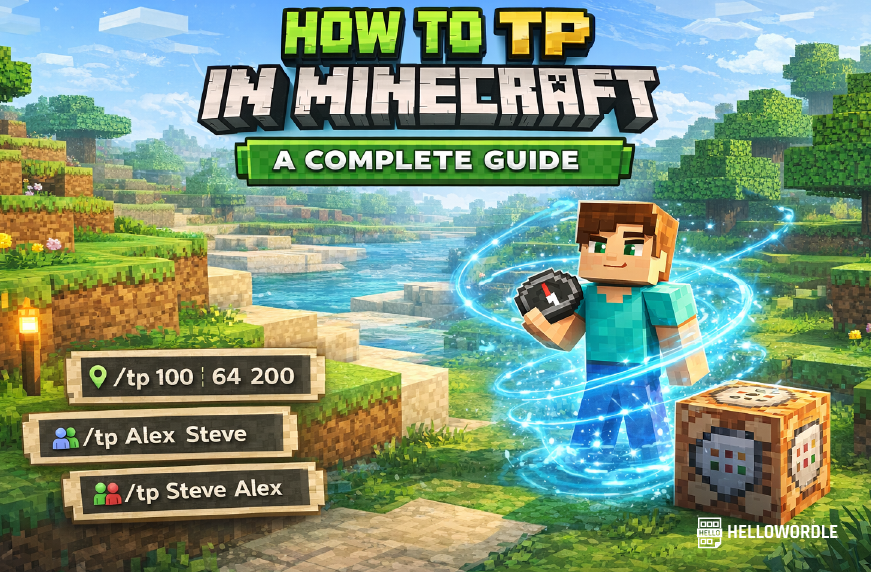
Quick TP Command Cheat Sheet (For Busy Players)
| Use Case | Command | What It Does |
|---|---|---|
| Teleport to Coordinates | /tp 100 64 200 | Moves you instantly to a specific location using X, Y, Z coordinates |
| Teleport to a Player | /tp YourName FriendName | Sends you directly to another player’s current position |
| Bring Player to You | /tp FriendName YourName | Teleports another player to your current location |
Tip: Always double-check your coordinates and player names before pressing enter, one small typo and you might end up somewhere completely unexpected.
Introduction
If you’ve ever been stranded thousands of blocks away from your base, lost your friends on a server, or wanted to move around a world faster without all the walking, learning how to TP in Minecraft is one of the most useful skills you can pick up. Teleporting lets you instantly move yourself, another player, or even entities to a new location using commands. It sounds simple at first, but there’s actually a lot to know if you want to use it properly and avoid mistakes.
For beginners, the teleport command is often the first “real” Minecraft command they use. For server admins and map creators, it’s basic infrastructure. And for players switching between Java and Bedrock, it can get a little confusing because command behavior and setup are not always explained clearly in random tutorials online. That’s why this guide breaks it down in a practical way, using real examples, official syntax, and easy explanations that actually make sense.
In this article, you’ll learn how to teleport to coordinates, how to TP to another player in Minecraft, how to bring players to you, how relative coordinates work, what changes between Java Edition and Bedrock Edition, and what mistakes people usually make. If you’ve searched for phrases like how to teleport in Minecraft with commands, Minecraft TP command guide, how to teleport to a friend in Minecraft, or how to use coordinates in Minecraft, you’re in exactly the right place.
What Does TP Mean in Minecraft?
In Minecraft, “TP” is short for teleport. It refers to the /tp or /teleport command, which instantly moves a player or entity from one place to another. Mojang’s official command guide includes /teleport as one of the standard useful commands, and that’s because it saves time, helps with multiplayer management, and supports custom worlds, adventure maps, and admin tasks.
Teleporting can be used for simple stuff, like jumping back to your base after mining, or for more advanced things, like moving all players to a lobby, setting checkpoints in custom maps, or placing entities precisely for testing. In other words, it’s not just a convenience feature. It’s part of how many players actually control the game world.
Before You Use the TP Command
1. Cheats Must Be Enabled
In a regular single-player survival world, teleport commands will not work unless cheats are enabled. If you’re creating a new world, you can switch cheats on during setup. If the world already exists, Java players can temporarily enable commands through Open to LAN, while multiplayer servers usually require operator permissions. This is the first reason people think the command is broken, but most of the time it’s just permissions.
2. You Need the Correct Command Syntax
Minecraft commands are picky. One small typo, a missing space, or a wrong player name can make the command fail. The good news is the basic teleport syntax is not complicated once you understand the pattern.
3. Know Whether You’re on Java or Bedrock
The core teleport idea is the same in both editions, but some advanced command behavior differs. If you mostly play on PC Java and then switch to console, mobile, or Bedrock for cross-platform multiplayer, you’ll want to keep those differences in mind.
Basic Teleport Command Syntax
The simplest way to think about the command is this: you are telling Minecraft who to move and where to move them. Official Minecraft documentation commonly shows the /teleport command in this format, and the short version /tp is widely used by players because it’s faster to type.
The most common versions are:
/tp <x> <y> <z>
/tp <player> <x> <y> <z>
/tp <player1> <player2>
Once you understand those three patterns, you can do most day-to-day teleporting in Minecraft without any trouble.
How to TP in Minecraft to Coordinates
This is the most searched version of the topic for a reason. A lot of players don’t just want to teleport to another person, they want to teleport to an exact place. That could be a base, a village, a stronghold, a custom build site, or somewhere you wrote down earlier.
Teleport Yourself to Coordinates
Use this command:
/tp 100 64 200
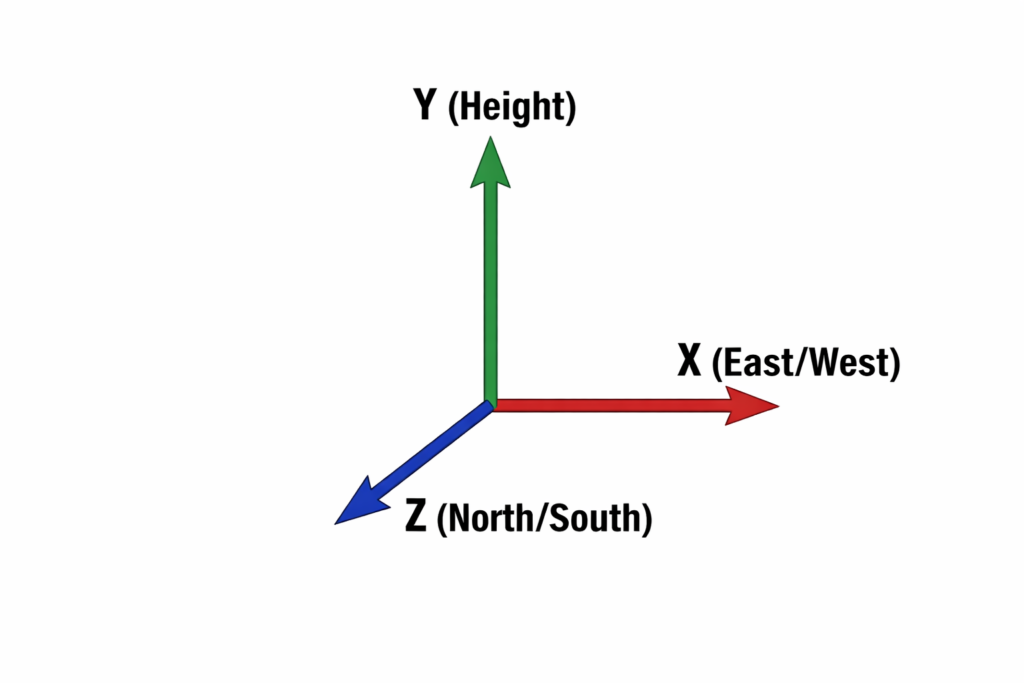
This sends your character to X=100, Y=64, and Z=200. In Minecraft coordinates, X and Z represent horizontal position and Y represents height. If the Y value is too low, you may teleport inside stone, lava, or the void depending on the dimension. If it’s too high, you could fall and take damage. So yeah, the Y number matters more than new players think.
What the Coordinates Mean
A quick refresher helps here:
- X = east/west position
- Y = vertical height
- Z = north/south position
In Java Edition, pressing F3 opens the debug screen where your coordinates are shown. In Bedrock Edition, coordinates can be enabled in world settings. If you want to get good at teleporting, start paying attention to your coordinates while exploring. It makes the whole game easier honestly.
How to TP to Another Player in Minecraft
Multiplayer is where teleporting becomes really useful. If your friend wandered off, if someone joined late, or if the group is trying to meet at the same build site, the fastest method is player-to-player teleporting.
Teleport Yourself to Another Player
/tp YourName FriendName
For example:
/tp Alex Steve
This teleports Alex to Steve. If you are typing the command for yourself, use your own in-game name as the first name. On some setups you can also use a target selector, but player names are easier for beginners and less likely to cause confusion.
Bring Another Player to You
If you want the opposite result, switch the order:
/tp FriendName YourName
That teleports your friend to your current location. Server admins do this all the time when helping players who are stuck, lost, or trapped somewhere weird.
How to Use Relative Coordinates in Minecraft TP Commands
Exact coordinates are useful, but relative coordinates are often even better when you want short-range movement. Minecraft uses the tilde symbol ~ to mean “relative to the current position.” This lets you move a certain number of blocks from where you already are.
Example:
/tp ~10 ~0 ~-5
This moves you 10 blocks along the X axis, keeps you at the same height, and shifts you 5 blocks in the negative Z direction. It’s great for building, testing, redstone setups, and map creation because you don’t need to calculate a full new position every time.
Here are a few practical examples:
/tp ~ ~10 ~moves you 10 blocks upward/tp ~ ~ ~20moves you 20 blocks forward on the Z axis depending on orientation context/tp ~-30 ~ ~moves you 30 blocks in the negative X direction
A lot of experienced players prefer relative coordinates because they’re quicker to work with when adjusting positions on the fly. It feels more natural once you get used to it.
How to TP in Minecraft Java Edition vs Bedrock Edition
If you’ve been looking up how to TP in Minecraft Bedrock or how to teleport in Minecraft Java, the good news is the core command is very similar in both editions. But the larger command system around teleportation is more flexible in Java. That matters for advanced cases like facing directions, cross-dimension execution, selectors, and command block systems.
Java Edition
Java Edition tends to support more advanced command workflows, especially when combined with commands like /execute. If you make maps, run a modded server, or use data packs, Java is usually where the more complex teleport logic happens.
Bedrock Edition
Bedrock still supports standard teleporting just fine, including teleporting to coordinates and to players. It’s often the simpler environment for casual multiplayer, especially on console and mobile. The main thing is to make sure coordinates are enabled and that you have permission to use commands.
For everyday use, the commands most players need are basically the same. The difference starts to show when you get into more technical setups.
Advanced Teleport Commands for Better Control
Once you know the basics, you can do more than just jump from point A to point B. Minecraft’s teleport system also supports direction control, target selectors, and moving multiple players or entities at once.
Teleport a Specific Player to Coordinates
/tp Steve 250 70 -120
This moves Steve to a precise location. It’s useful for events, server moderation, mini-games, and creative projects where multiple people need to be placed exactly.
Teleport All Players to One Spot
/tp @a 0 100 0
The selector @a means all players. This is often used in lobbies, challenge maps, or admin resets. Be careful though, because if the destination is unsafe, everyone gets dropped into the same problem at once.
Teleport the Nearest Player
/tp @p 100 64 100
@p means the nearest player. This is useful in command block systems and maps where the game needs to move whoever is closest to a trigger point.
Teleport While Facing a Direction
Official Minecraft update notes have documented teleport syntax that supports facing a location or entity. That’s especially useful in custom maps and cinematic sequences because it controls what the player sees immediately after teleporting.
/teleport Steve 100 64 200 facing 120 70 220
This teleports Steve and then makes him face those coordinates. It sounds small, but it’s a big quality-of-life tool for map makers.
Can You Teleport Between Dimensions?
This is where things get a little more technical. Standard teleport commands usually move you within the current execution context, but Java Edition supports cross-dimension command workflows through /execute in combined with teleport. Mojang’s own public feedback and command-related documentation have acknowledged this approach for moving entities between dimensions in Java.
For ordinary players, though, the easier and more survival-friendly method is still using Nether portals and End portals. If your goal is just regular gameplay and not admin control or map design, portals are simpler and less error-prone.
Common TP Mistakes Players Make
Even though the command is simple, there are a few mistakes that come up again and again. Knowing them now will save you some frustration later.
Using the Wrong Y Coordinate
This is probably the biggest one. Players see a cool location online, type in the X and Z correctly, and then guess at the Y value. That can put you underground, in a cave roof, underwater, or high in the air. When in doubt, use a safer height like 80 or higher and then adjust from there if the terrain allows it.
Forgetting Cheats or Permissions
If the command says you don’t have permission, that’s not a syntax issue. It usually means cheats are disabled or you aren’t an operator on the server.
Typing the Player Names in the Wrong Order
If you use /tp player1 player2, the first player is the one being moved. The second player is the destination. This sounds obvious once you know it, but a lot of people get it backwards at first.
Teleporting Into Unsafe Terrain
Blindly teleporting to coordinates without checking the area is risky. Mountains, caves, lava lakes, and deep oceans can all make a “quick teleport” go bad fast. It’s one of those little things that seems fine until it very much isn’t.
Pros and Cons of Using Teleport Commands in Minecraft
Pros
- Fast travel saves a huge amount of time
- Helps multiplayer groups meet instantly
- Excellent for admins, map makers, and builders
- Makes testing and world editing much easier
- Useful for recovering from getting lost
Cons
- Usually requires cheats or operator access
- Can reduce the survival exploration experience
- Easy to misuse on public servers
- Wrong coordinates can be dangerous
- Some advanced behaviors differ by edition
Best Tips for Teleporting Safely and Efficiently
If you want to use teleporting without constantly messing it up, a few habits make a big difference.
- Write down important coordinates. Keep your base, village, stronghold, trial chambers, and farms saved somewhere.
- Use safer Y values. When testing unknown coordinates, don’t guess too low.
- Learn relative coordinates. They make short-range movement much easier.
- Practice in a creative test world. It’s the fastest way to get comfortable with command syntax.
- Use selectors carefully. Commands like
@aaffect everyone, so double-check before hitting enter.
From personal gameplay experience, the most useful habit is honestly just keeping a note of your important coordinates. Once you start doing that, teleporting becomes less of a panic fix and more of a tool you actually control.
Real Use Cases Where TP Is Genuinely Useful
Server Administration
Admins use teleporting to help new players, investigate griefing, monitor suspicious activity, and move players to event areas. It’s one of the most practical moderation tools in the game.
Creative Building
If you are building a city, mega base, or redstone testing area, walking back and forth between sections gets old fast. TP lets you move between work zones instantly.
Adventure Maps and Minigames
Map creators often use teleport commands to set checkpoints, story transitions, arena entries, and puzzle resets. In many custom maps, teleporting is basically invisible infrastructure holding the experience together.
Casual Multiplayer
Friends split up a lot in survival. Someone goes mining, someone heads to a village, someone starts a base in the wrong biome. Teleporting solves that problem in seconds, which is why it’s one of the most searched multiplayer Minecraft commands.
Frequently Asked Questions
In normal gameplay, you usually can’t use the teleport command without cheats or operator permission. The main exception is server plugins, custom realms settings, or gameplay systems that give players access in a controlled way.
/tp is the short version players commonly use, while /teleport is the full command name shown in official command documentation. For most common uses, they do the same job.
Yes, on Bedrock platforms like console and mobile, teleporting is possible if commands are enabled and you have the right permissions. The command structure is broadly similar to other versions.
Yes, and that’s one of the most common uses of TP. You enter the X, Y, and Z values after the command and Minecraft moves you there instantly.
The usual reasons are disabled cheats, lack of permissions, wrong syntax, wrong player names, or unsafe/incomplete coordinates. Most command failures come down to one of those.
Official Resources You Can Trust
If you want to double-check syntax or stay current with official command behavior, it’s smart to use trusted sources instead of random copied guides. Mojang’s official Minecraft commands guide is a solid starting point for basic command usage. The Minecraft Education commands overview also explains coordinates and command structure in a very readable way. For update-related command behavior, official Minecraft release notes on Minecraft.net are worth checking from time to time.
Conclusion
If you wanted one clear answer to how to TP in Minecraft, here it is: teleporting is the command-based way to move yourself, other players, or entities instantly to a new location, and the easiest forms are teleporting to coordinates or teleporting to another player. Once you understand the command order, coordinates, and permissions, it becomes very easy to use.
The best place to start is with two simple commands: teleporting yourself to coordinates and teleporting yourself to a friend. After that, learn relative coordinates, practice safe Y values, and only then move into selectors and advanced command features. Minecraft’s teleport command can feel technical at first, but after a little practice it’s one of the most useful tools in the whole game.
So if you’ve been lost, separated from friends, or just tired of walking forever, teleporting is absolutely worth learning. And once you start using it properly, you’ll probably wonder why you waited so long to figure it out.
VISIT FOR MORE: HELLOWORDLE